| GAME INFORMATION | |
|---|---|
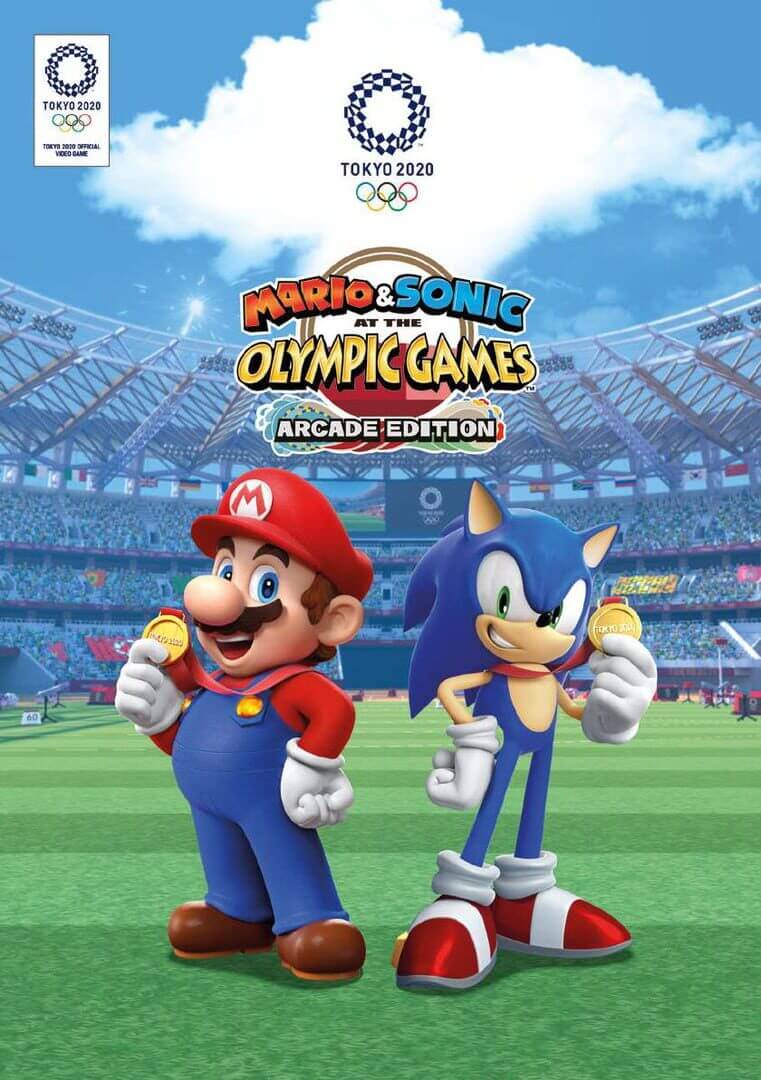
| Game Name | Mario & Sonic at Tokyo 2020 Olympic Games: Arcade Edition |
| Region | World |
| Console | Arcade |
| Game Release | 2021 (5 years ago) |
| Genre | Arcade, Sports |
| Publisher | N, SEGA |
| Languages | English, Japanese |
| Downloads | 422 |
| Users Score | |
| Favorites | |
Game Description:
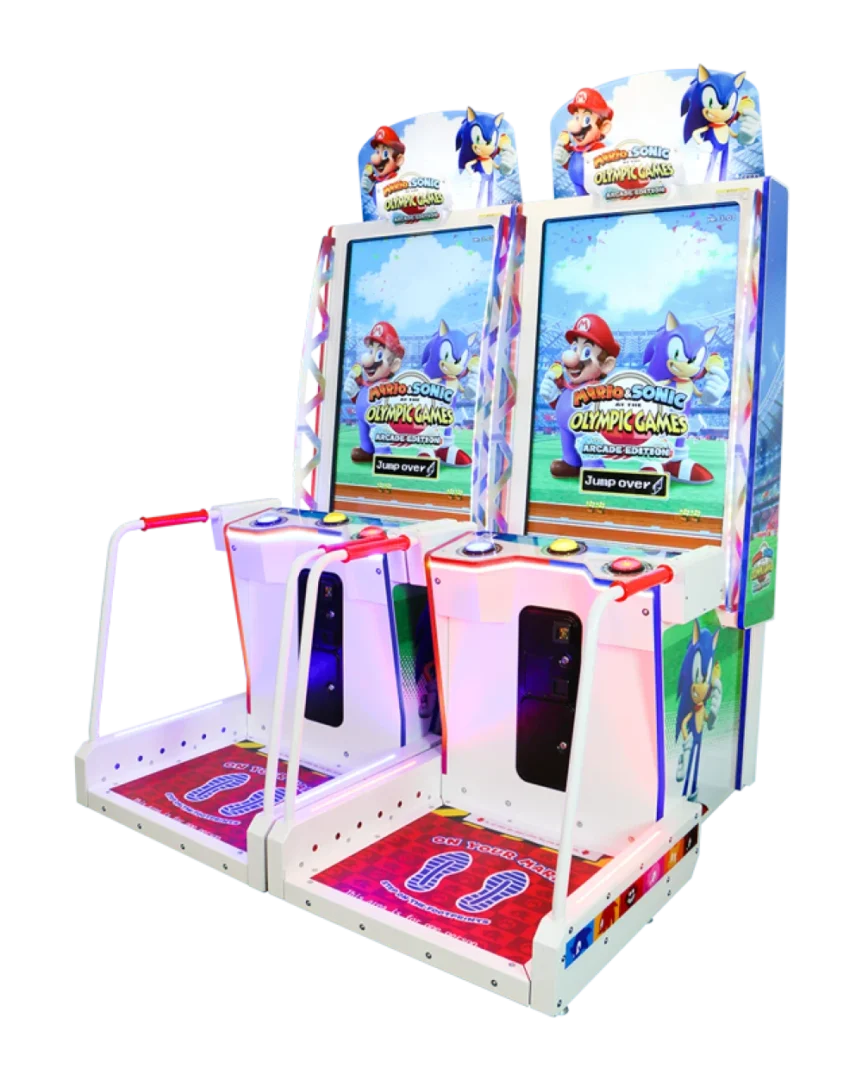
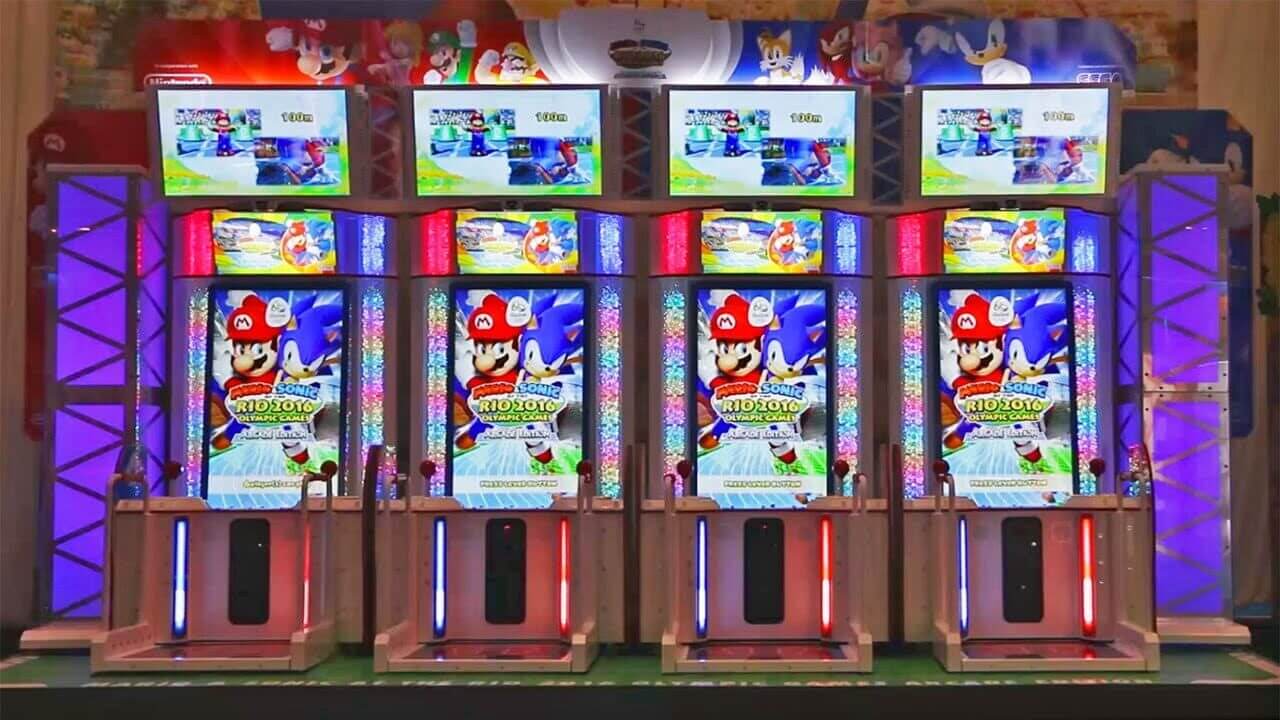
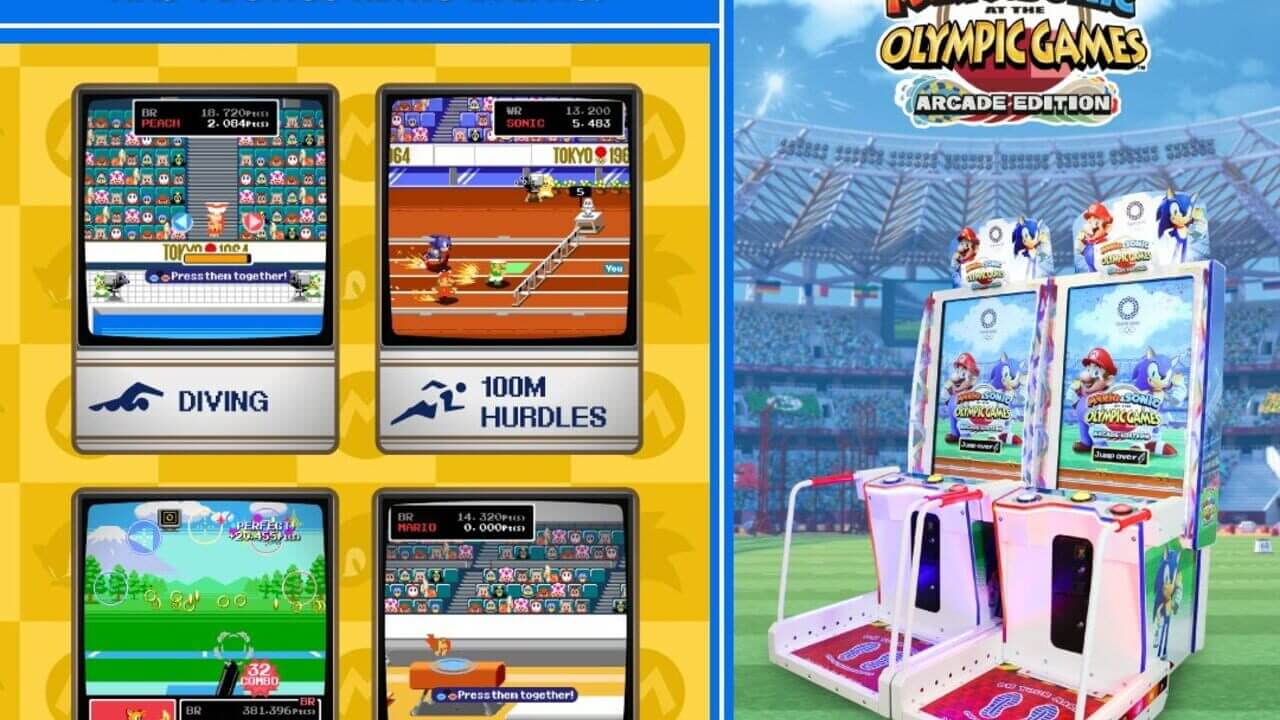
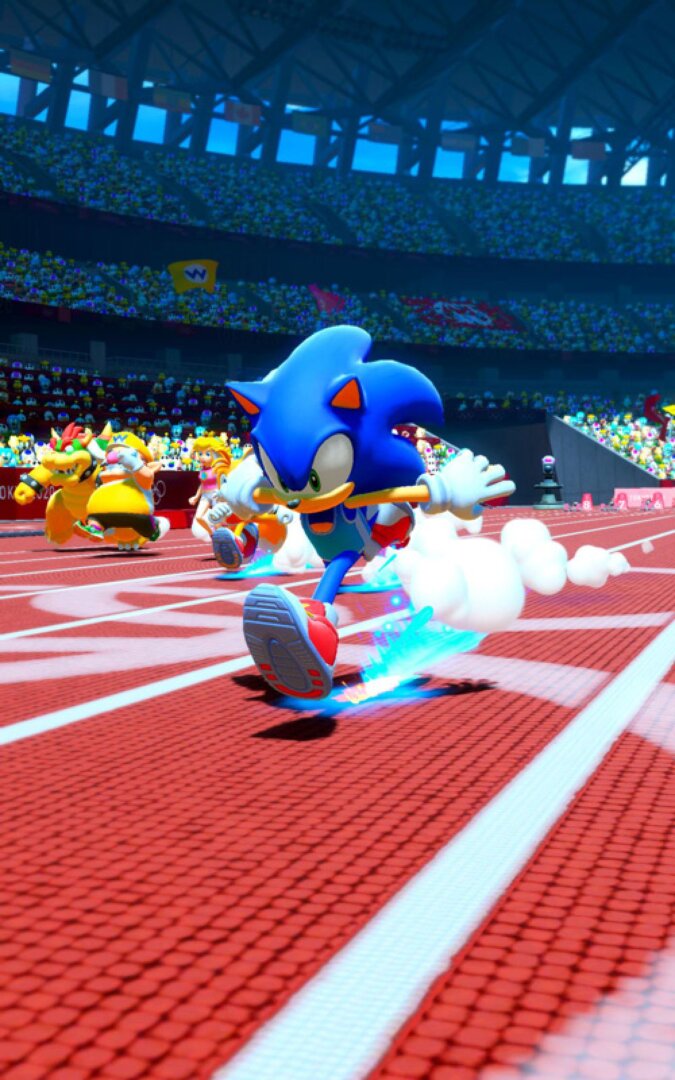
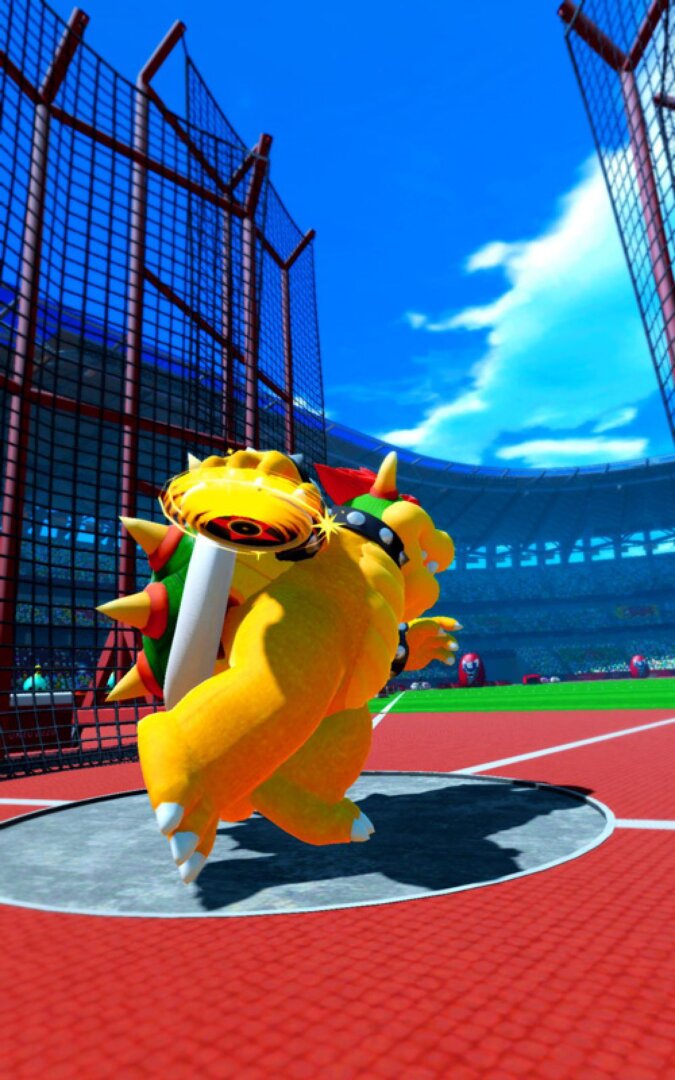
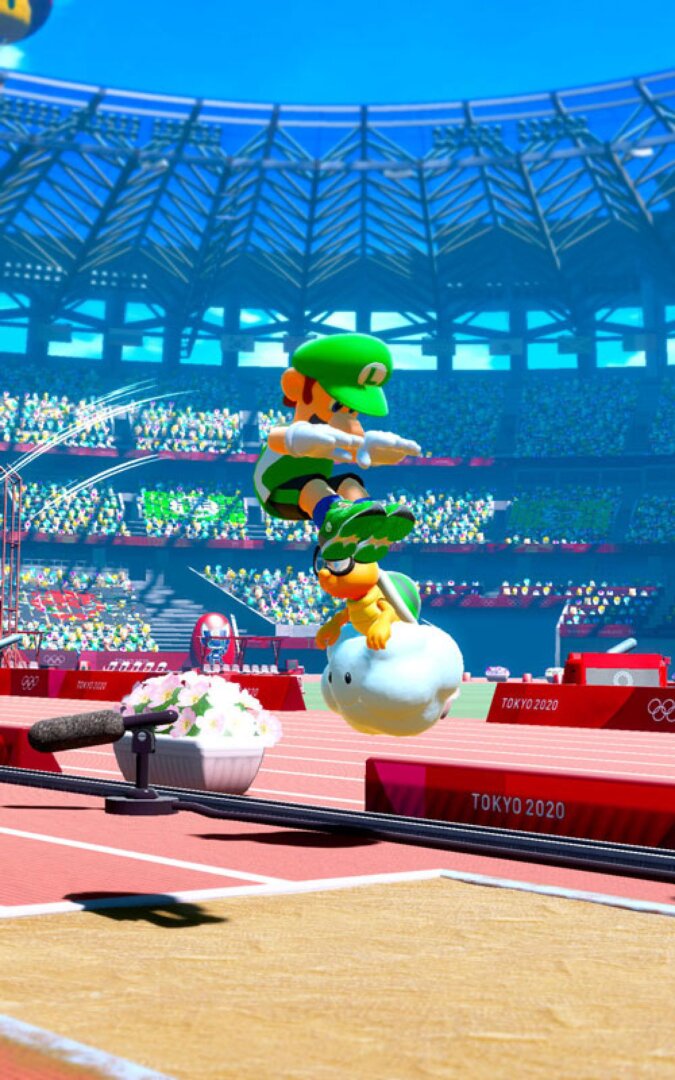
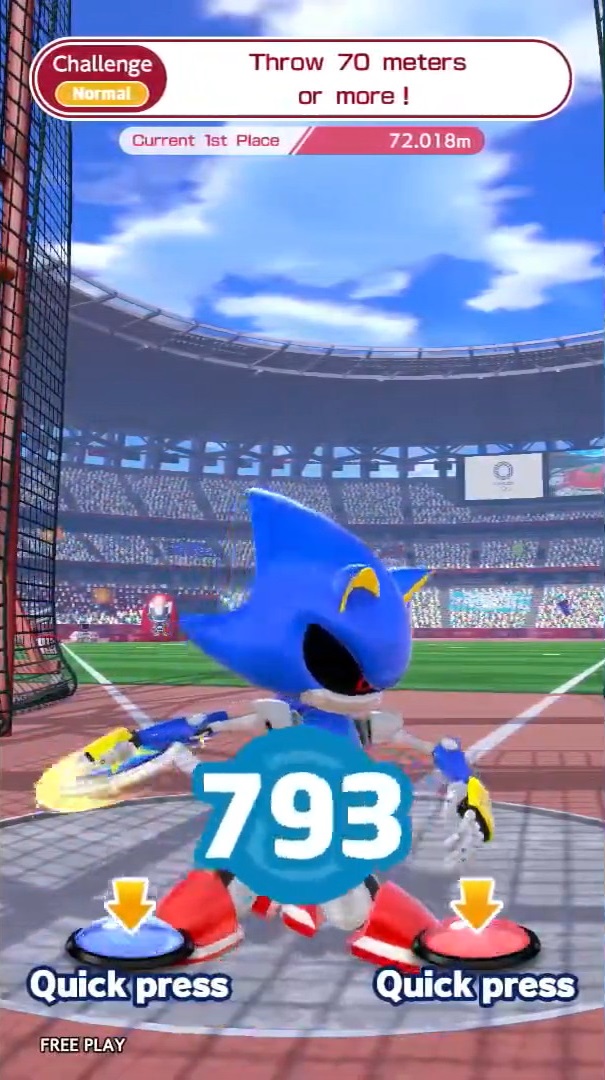
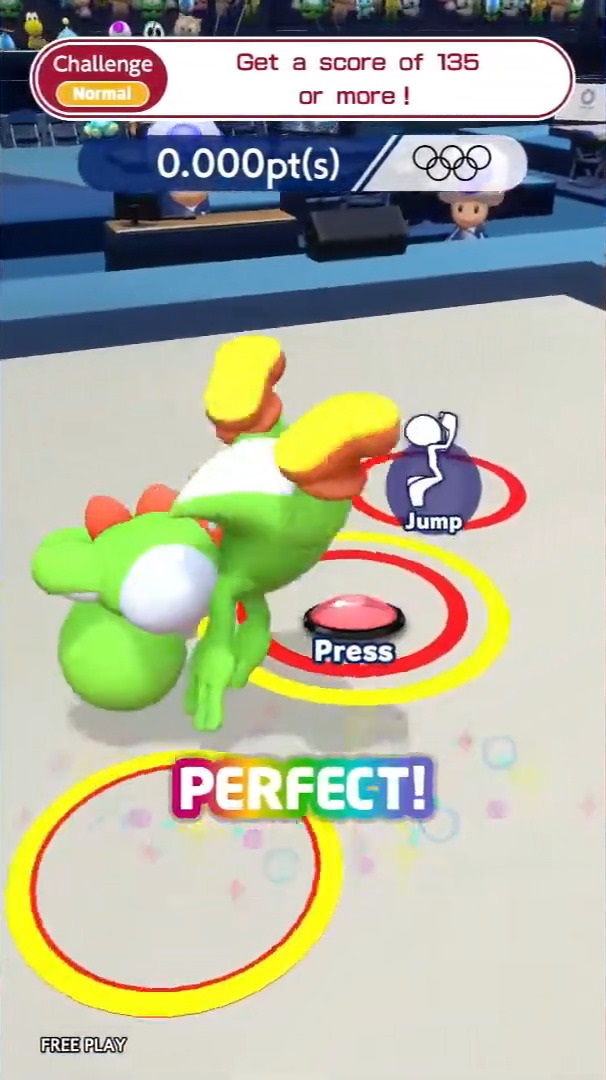
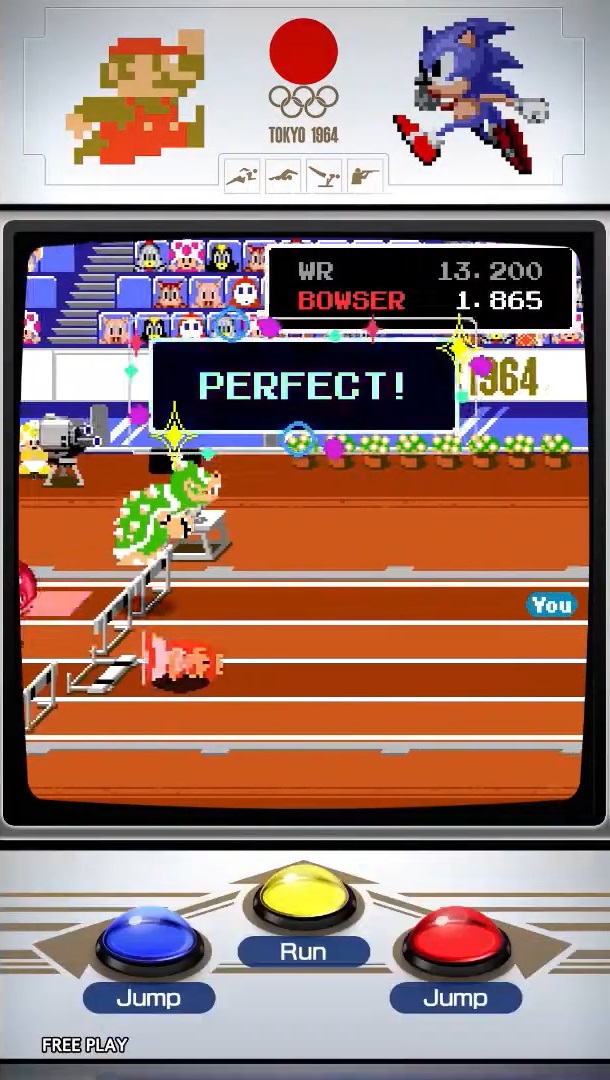
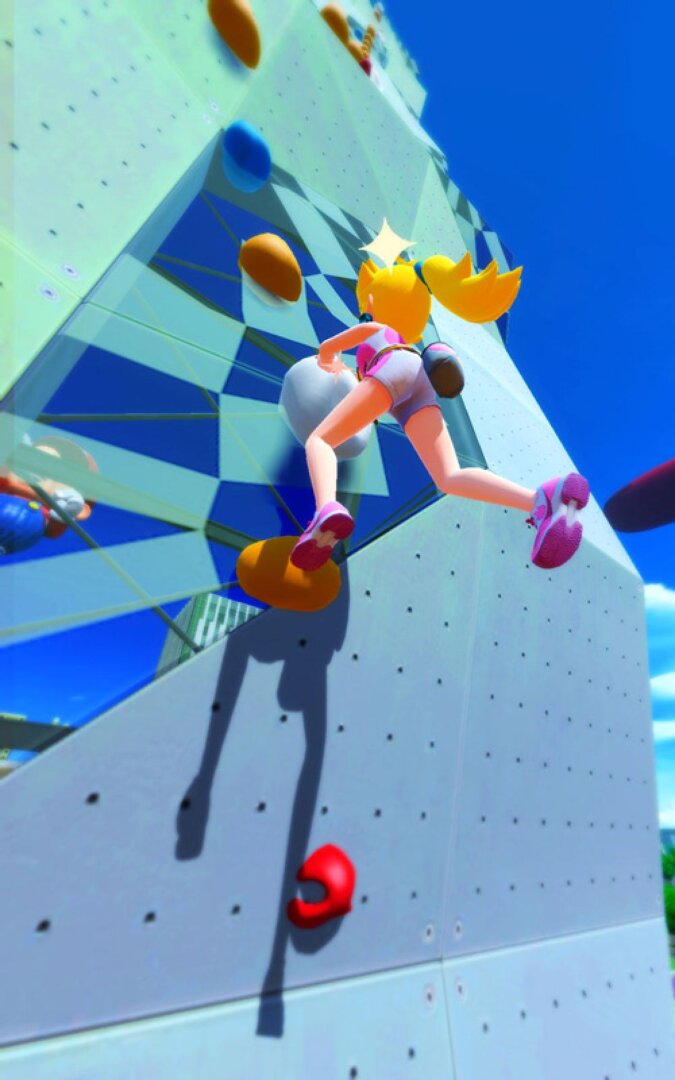
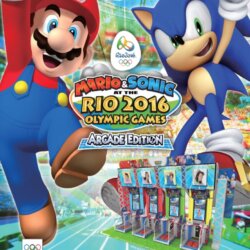
Mario & Sonic at Tokyo 2020 Olympic Games: Arcade Edition is a Arcade/Sports video game published by N, SEGA released on 2021 for the Arcade.
This is the Arcade version of Mario & Sonic at Tokyo 2020 Olympic Games released January 2021, this is different from the Switch version, I never had the chance to play this as by the time it was installed in our arcades I had lost my old job and couldn't afford spending extra money on the arcades but I did record footage of it way back in my youtube channel.
How to Run:
- The requirements for TeknoParrot are DirectX End-User Runtimes (June 2010) and Microsoft Visual C++ 2015-2022 Redistributable
- Download TPBootstrapper from here
- Download the zip file containing the dat file from here and extract it to your Downloads folder
- Create a folder called TeknoParrot in your Downloads folder, extract TPBootstrapper and run the exe
- Tell TeknoParrot Web Installer to use the folder you just created
- Select and download (one at a time) TeknoParrot UI, TeknoParrot and TeknoParrotElfLdr2.
- Extract the folder from the 7z containing the game files and move it into the TeknoParrot folder
- Launch TeknoParrotUi.exe and accept its privacy policy and when asked if you'd like to set up a game say No (it pops up twice for some reason)
- Click Next, click Browse and pick the .dat file from earlier and click Next
- Skip Game Scanning and then skip Controls Setup (we'll get to that in a bit)
- Keep clicking Next and then Finish. When asked if you want to add a game say No again
- Click the 3 lines menu at the top left and click Add Game
- In the list pick Mario & Sonic at Tokyo 2020 Olympic Games and click Add Game and Return
- Click Game Settings and click the line under Game Executable, you will need to assign two executables, go to package folder and under app.exe select "app.exe" and under amdaemon.exe select "amdaemon.exe".
- Click on "Controller Setup" then configure your controller.
- Click Play and wait a little bit for the game to start.
Game Screenshots: