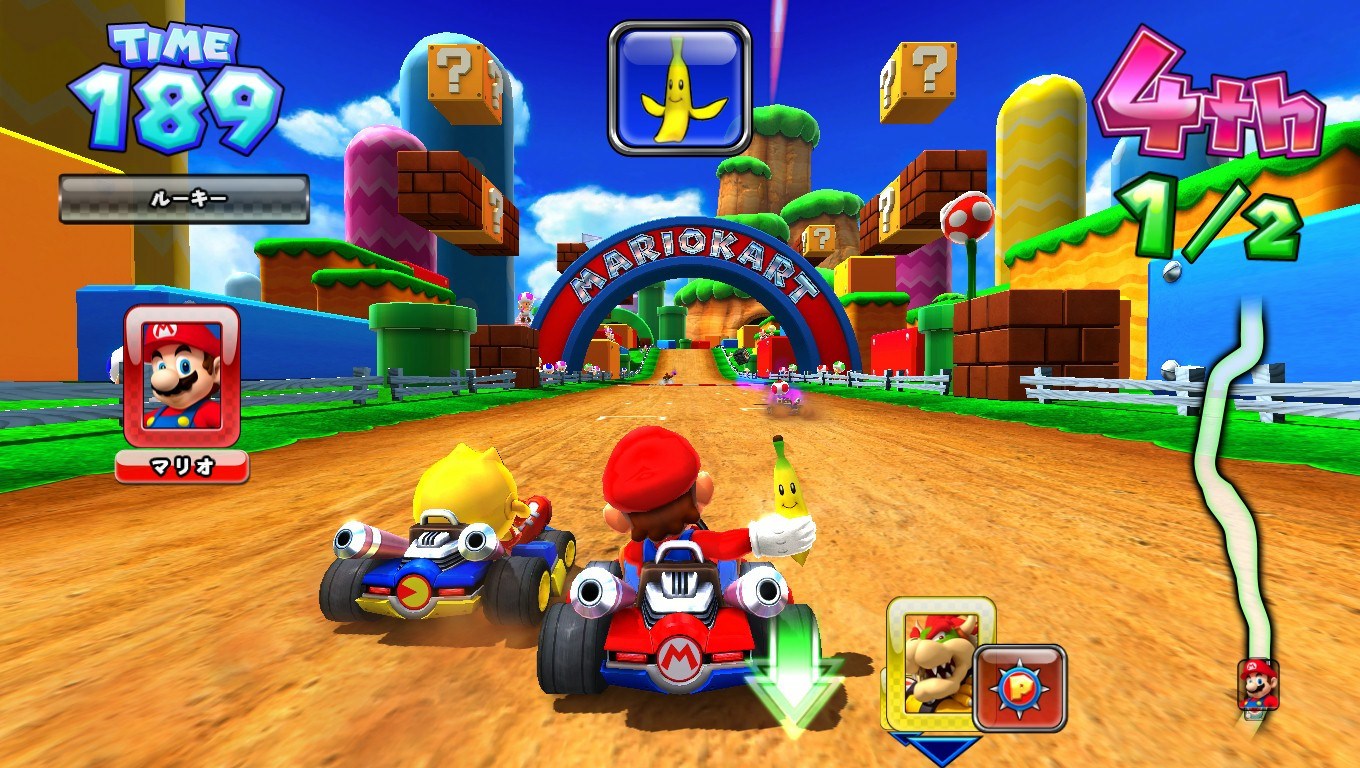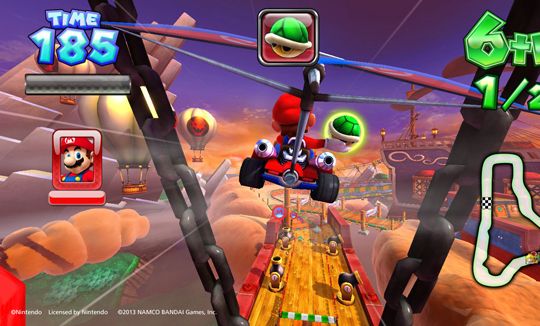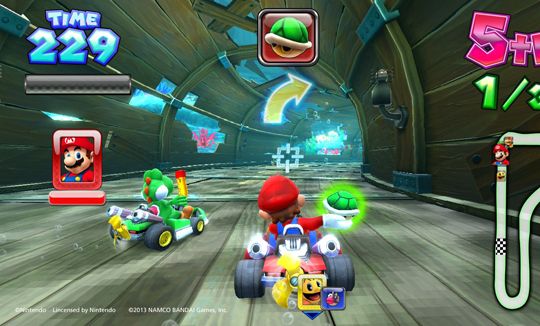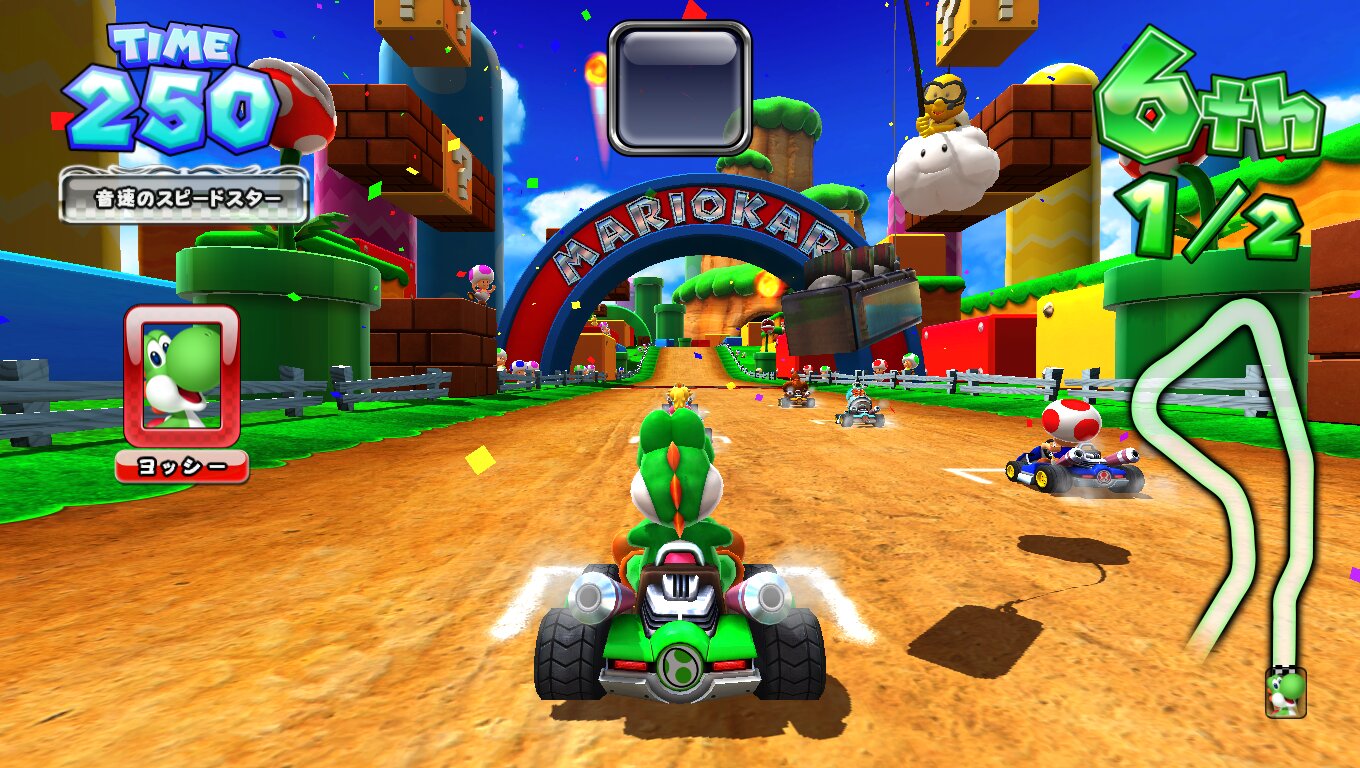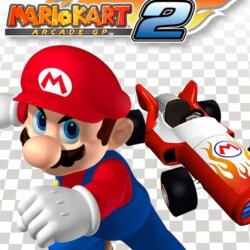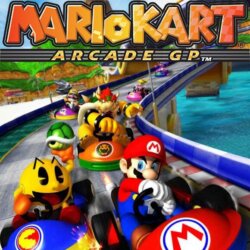
| GAME INFORMATION | |
|---|---|
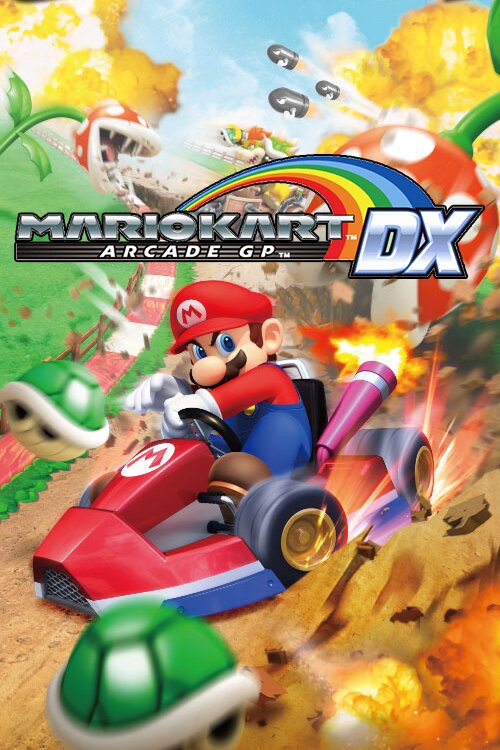
| Game Name | Mario Kart Arcade GP DX |
| Original Title | マリオカート アーケードグランプリ デラックス |
| Region | Japan |
| Console | Arcade |
| Game Release | 2013 (13 years ago) |
| Genre | Racing |
| Publisher | Bandai Namco Entertainment, N |
| Developer | Bandai Namco Games |
| Languages | English Patched |
| Downloads | 3,325 |
| Users Score | |
| Favorites | |
Game Description:
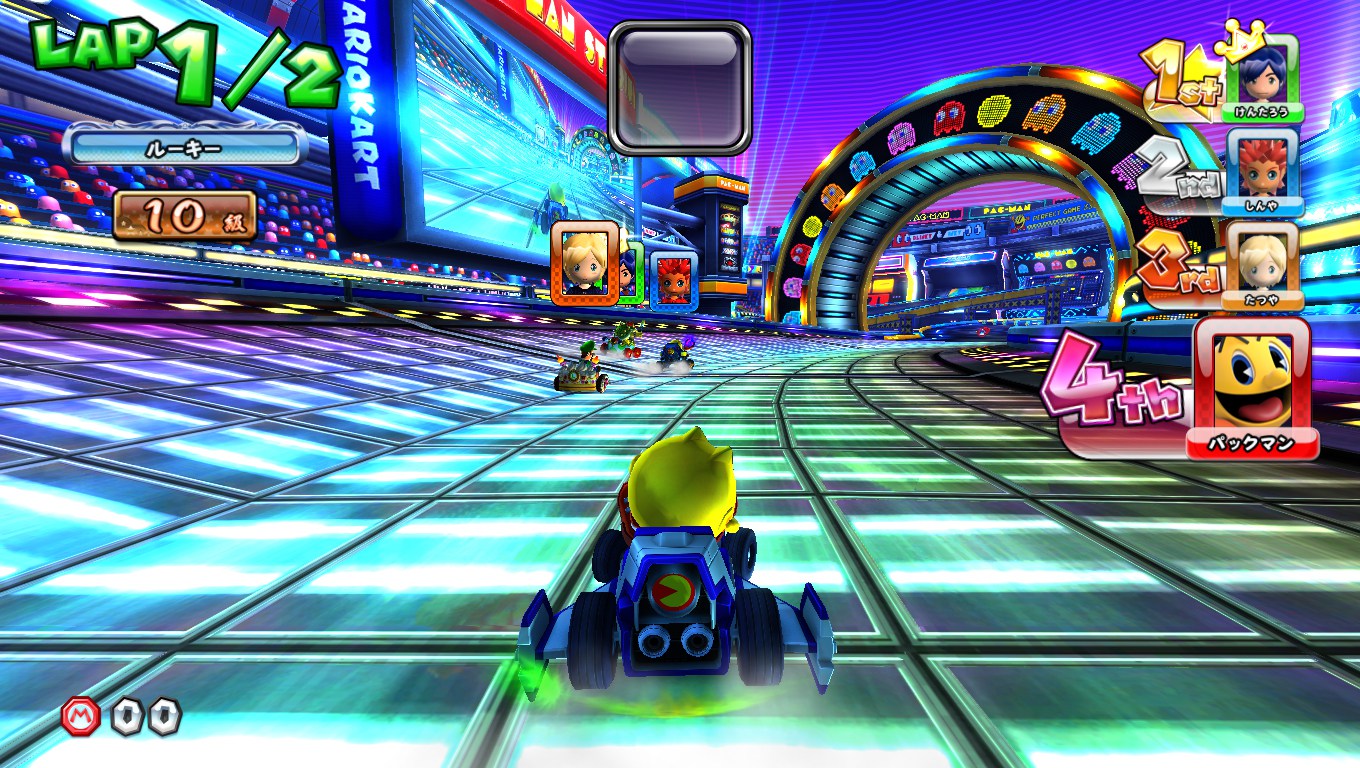
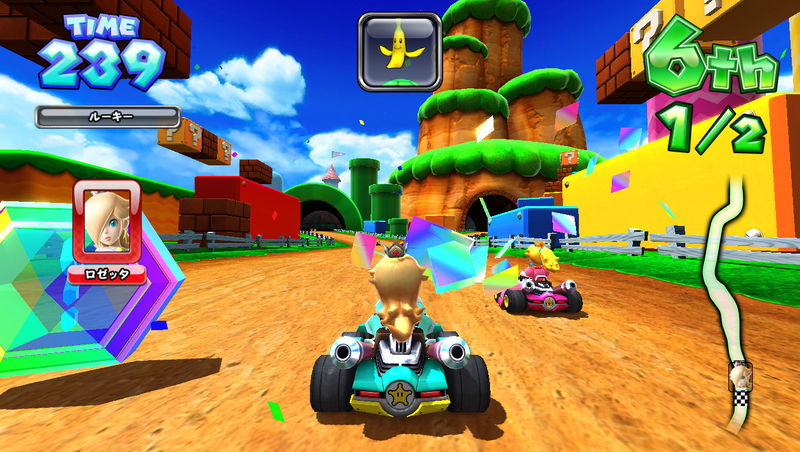
Mario Kart Arcade GP DX (マリオカート アーケードグランプリ デラックス) is a Racing video game published by Bandai Namco Entertainment, N and developed by Bandai Namco Games released on 2013 for the Arcade.
Update: added version 1.18.16 which is the most updated version.
How to Run:
- The requirements for TeknoParrot are DirectX End-User Runtimes (June 2010) and Microsoft Visual C++ 2015-2022 Redistributable
- Download TPBootstrapper from here
- Download the zip file containing the dat file from here and extract it to your Downloads folder
- Create a folder called TeknoParrot in your Downloads folder, extract TPBootstrapper and run the exe
- Tell TeknoParrot Web Installer to use the folder you just created
- Select and download (one at a time) TeknoParrot UI, TeknoParrot and TeknoParrotElfLdr2.
- Extract the folder from the 7z containing the game files and move it into the TeknoParrot folder
- Launch TeknoParrotUi.exe and accept its privacy policy and when asked if you'd like to set up a game say No (it pops up twice for some reason)
- Click Next, click Browse and pick the .dat file from earlier and click Next
- Skip Game Scanning and then skip Controls Setup (we'll get to that in a bit)
- Keep clicking Next and then Finish. When asked if you want to add a game say No again
- Click the 3 lines menu at the top left and click Add Game
- In the list pick Mario Kart Arcade GP DX 1.18 and click Add Game and Return
- Click Game Settings and click the line under Game Executable to be able to pick it and on the root pick MK_AGP3_FINAL.exe
- Click on "Controller Setup" then configure your controller (Press right on the analog stick to configure wheel).
- Click Play and wait a little bit for the game to start.
In case you get an error message that says "Could not find compatible Direct3D devices" try to install DLL files to your system, otherwise you can delete the "DLL files" folder.
Game Screenshots: